

How to Make A Shared Note On iPhone: Step-By-Step Guide
At Social Think, we focus on providing insightful social media strategy, analytics, and insights to help you achieve your business goals.
A big part of any strategy is effective collaboration, and sometimes the most powerful tools are the ones already on your Apple device. The Notes app on your iPhone is more than just a place for your thoughts; it’s a great tool for teamwork.
Knowing how to make a shared note on iPhone can change how you work with coworkers, plan with family, or brainstorm with friends.
This guide will walk you through everything you need to know.
We’ll show you how to share notes on iPhone to edit, manage who can see them, and even how to leave a shared note on iPhone when you’re done. Social Think is here to help you use these tools to make your work easier and more connected.
What Do You Need to Make A Shared Note on iPhone?
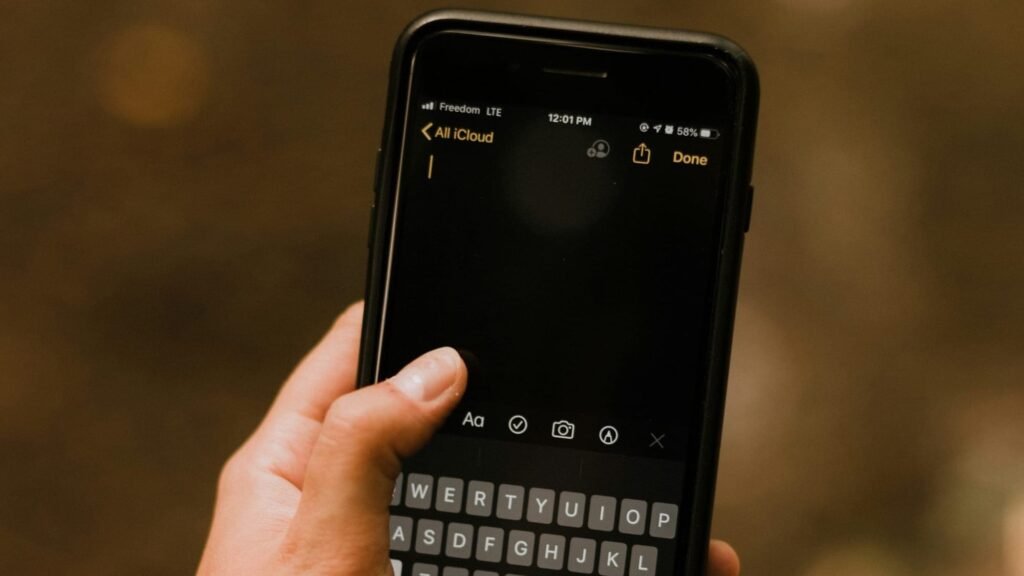
Before you start sharing, there are two quick things to check on your iPhone to ensure everything works smoothly. Think of this as setting the stage for great collaboration.
Updating to the Latest iOS Version
First, make sure your iPhone is running the latest version of iOS.
Apple often adds new features and improves the Notes app with its software updates. Having the latest iOS version ensures you have the best security and all the current share options.
To check, go to the Settings app, tap “General,” and then “Software Update.” If there’s a new version, your iPhone will show you how to install it.
It’s an easy way to make sure the app runs perfectly.
Enabling iCloud For Notes
The magic that makes a shared note work is iCloud. It’s Apple’s service that syncs your data across all your devices, like your iPad and Mac.
For note sharing to function, the Notes app must be connected to your iCloud account.
To check this, open the Settings app on your iPhone. Tap your name at the very top to open your Apple account settings (this is tied to your Apple ID).
From there, tap on iCloud. You will see a list of apps using iCloud.
Tap “Show All” if needed, find “Notes” in the list, and make sure the toggle next to it is green. When this is on, any new note or edit you make in an iCloud folder will show up on all your devices and for your collaborators in real time.
How to Make A Shared Note on iPhone Via the Notes App?
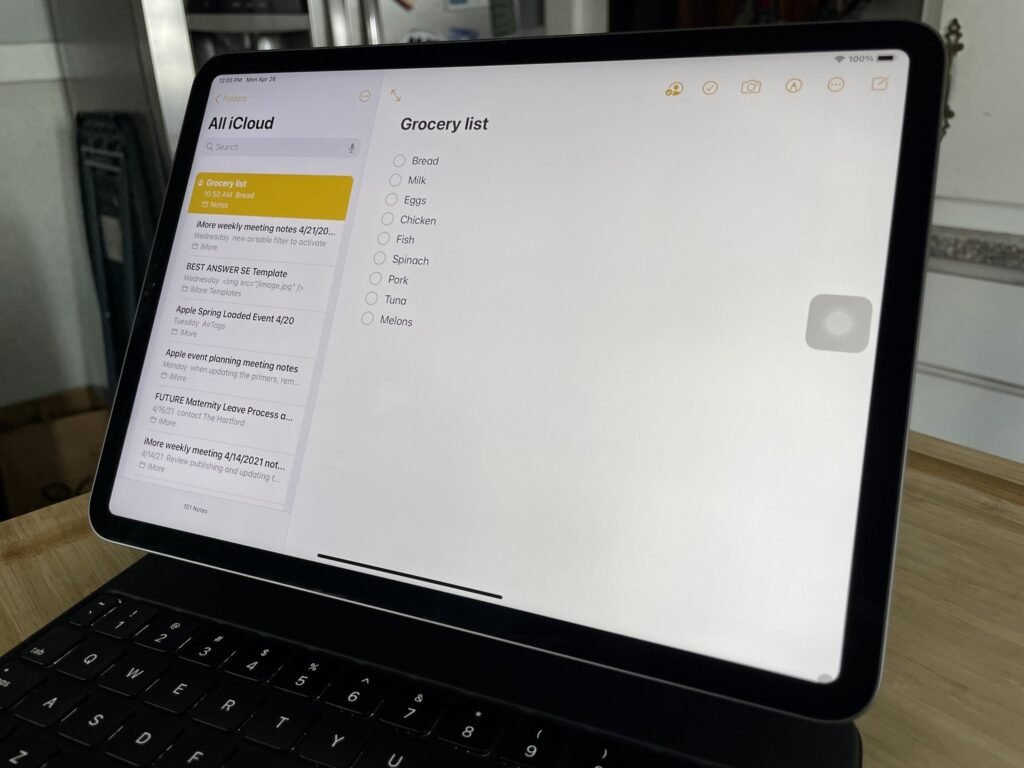
Once your iPhone is ready, sharing a note is straightforward. Here’s a step-by-step guide to get you started.
Step 1: Open the Notes App
First, find and open the Apple Notes app. It’s a default app on your iPhone, so it should be on your home screen. The icon looks like a yellow-and-white notepad.
When you open it, you’ll see your notes list.
Step 2: Choose an Existing Note Or Create A New One
You can either share a note you’ve already written or start a fresh one. To create a new note, tap the icon at the bottom right that looks like a square with a pencil. Make sure you are creating the note inside an iCloud folder, not a folder labeled “On My iPhone.”
Only notes in an iCloud folder can be shared for collaboration. If you want to share an existing note, just tap on it from your notes list to open it.
Step 3: Tap the Share Button
With your note open, look in the upper-right corner of the screen. You will see the share button, which is also called the share icon. It looks like a square with an arrow pointing up. Tap on it to open up all the different share options.
Step 4: Set Sharing Permissions
After tapping the share icon, you’ll see a menu. At the top, make sure the sharing option is set to “Collaborate,” not “Send Copy.” This is the most important step for live teamwork. Below that, you can control who has access and what they can do.
- Who can access: You can choose “Only invited people,” which is more secure, or “Anyone with the link.”
- Permissions: You can let others “Can make changes” or set it to “View only” if you don’t want them to edit notes. This is where you decide how to share notes on iPhone to edit.
Step 5: Select How to Send the Invitation
Next, choose how you want to send the invitation. You can send it directly through Messages, Mail, or other apps like WhatsApp. You can send the link to an email address or a phone number. Using Messages is great because you’ll get activity updates right in the conversation.
Note that you can’t use Airdrop for collaboration, only to send a copy.
Step 6: Send Your Invite
The last thing to do is add the contacts you want to share with and hit send.
Your collaborators will get a notification with a link to the shared note. Once they accept, they’ll be able to open the note on their own Apple device and start making changes. You will see a new people icon appear at the top of the note to show that it’s now shared.
How to Screen Share Notes From iPhone to PC?
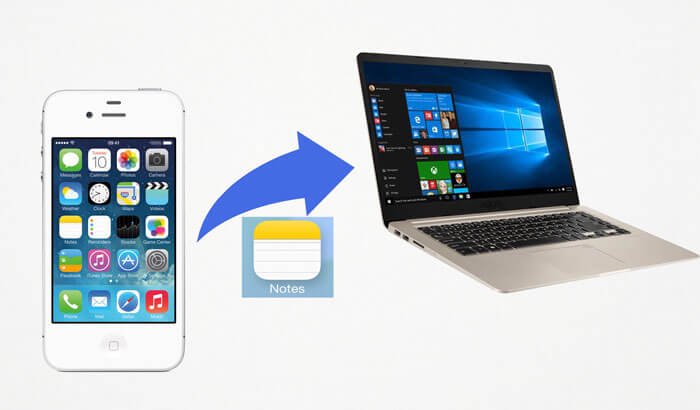
While the Notes app is designed for Apple devices, you can still access your notes on a Windows PC.
Using iCloud:
The easiest method is to use the iCloud website. Open a web browser on your PC (like Chrome, Firefox, or Edge) and go to iCloud.com.
Sign in with your Apple account ID and password. From there, you can open the web version of the Notes app. You will see your entire notes list, including any shared note or shared folder.
You can view and even edit the notes directly in your browser.
Using A Transfer Software:
There are also third-party software programs that let you mirror your iPhone screen to a PC or transfer files. You can find some of these on the App Store or by searching online.
These apps can be useful, but be sure to choose a trusted developer to protect your data.
How to Manage A Shared Note on Your iPhone?
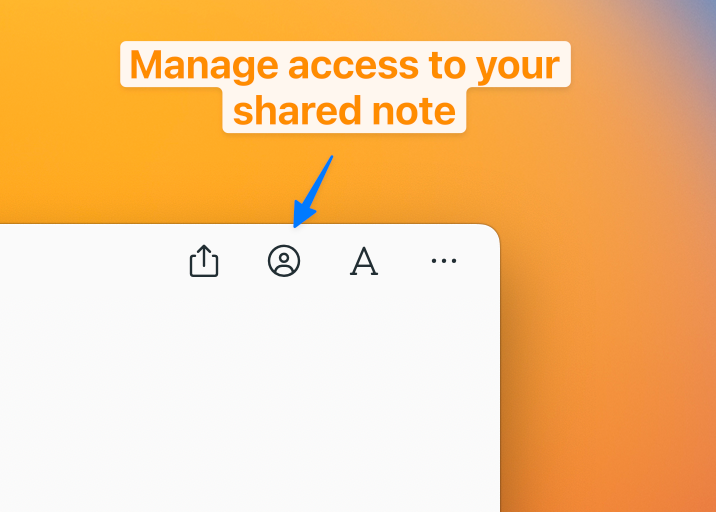
Once a note is shared, you have several options to manage it and keep track of the teamwork.
Seeing Who Has Access to the Note
To see who you’re sharing the note with, open the shared note and tap the people icon at the top. A list will appear showing the names of the people who have access to the note.
Checking Recent Updates From Collaborators
To see what changes have been made, tap the people icon and then select “Show All Activity.” This opens a summary of recent edits, showing who changed what and when.
Some iOS versions might call this Show Folder Activity. You can also swipe right in the note to see highlights of who made which changes.
This is very helpful for keeping track of progress with your coworkers.
Removing Someone From A Shared Note
If you need to remove someone from a shared note, tap the people icon and go to “Manage Shared Notes.” Tap on the name of the person you want to remove, and then choose “Remove Access.” They will no longer be able to see or edit notes.
How to Stop Sharing A Note Completely?
If a project is finished and you want to make the note private again, you can stop sharing it entirely.
Go to the same “Manage Shared Note” screen by tapping the people icon.
At the bottom, you will see an option to “Stop Sharing.” Tap it, and the note will be removed from everyone else’s devices. The shared note will become a regular note again, just for you.
FAQ’s:
Can I Share Notes On My iPhone With Users Who Have Android Phones?
For real-time collaboration, the Apple Notes app only works between Apple devices (iPhone, iPad, Mac) because it relies on iCloud.
An Android user cannot edit a shared note from the Apple Notes app. However, you can send a copy of a note to an Android user through email or save it as a PDF for them to view.
For cross-platform teamwork, you might consider using an alternative app like Google Keep or Google Docs. You can download the Google Keep app for free from the App Store.
How Do You Know If Someone Has Edited the Shared Note?
You’ll receive notifications when collaborators make changes, especially if you shared the link through Messages.
Inside the shared note itself, the text that has been changed recently will be highlighted in yellow for a short time. You can also use the “Show All Activity” feature to see a detailed history of edits.
Can I Control Who Edits A Shared Note On My iPhone?
Yes, you have full control. When you set up the share, you can choose the “View only” sharing option for certain people. This allows them to read the note but not make any changes. You can also control whether your collaborators can add other people to the shared note.
Is It Possible to Share A Note On My iPhone In Read-Only Mode?
Absolutely. When you tap the share button and set up the collaboration, simply change the permissions from “Can make changes” to “View only.” This is perfect for sharing information that you don’t want anyone to alter.
How Do I Stop Sharing A Note That I Have Previously Shared On My iPhone?
To stop sharing, open the shared note, tap the people icon in the upper right corner, select “Manage Shared Note,” and then tap “Stop Sharing.” This will immediately revoke access for all collaborators.
Will Deleting A Shared Note On My iPhone Remove It For Everyone?
Yes, this is very important to remember. If you are the owner of a shared note and you delete it from your Apple device, it will be deleted for everyone. All collaborators will lose access permanently. Be careful before deleting a note you’ve shared.
What’s the Difference Between Sharing and Sending A Copy?
This is a key distinction. Sharing a note (collaborating) creates a single, live document that everyone can edit in real time. Any change is visible to all collaborators. When you send a copy, you are just sending a static version of the note at that moment.
The recipient gets a separate copy of a note, and any edits they make will not appear on your original note.
Are There Other Apps Besides Apple Notes For Sharing Editable Notes On An iPhone?
Yes, many other apps are great for collaboration, especially if you work with people who use Android or Windows devices. The Google Keep app and Google Docs are popular choices and work seamlessly across platforms.
Other options like Evernote and Microsoft OneNote also offer robust sharing features. You can find them all on the App Store.
How Do I Remove Myself From A Shared Note On My iPhone?
If you no longer need to be part of a shared note, you can leave it.
This is how to leave a shared note on iPhone: open the note, tap the people icon, and select “Manage Shared Note.” Find your name in the list, tap on it, and you should see an option to “Remove Me.” Tapping this will remove you from the list of collaborators.
For more detailed instructions, you can always check an Apple support article on the official Apple Support website.
What Are Some Tips For Using Shared Notes to Collaborate With Friends Or Family On iPhone?
- Stay Organized: Use a shared folder to keep all related notes for a project in one place. You can even create subfolders within it.
- Communicate: If you add something important, let your collaborators know. You can use checklists to assign tasks and track progress.
- Add More Than Text: You can add attachments to your notes, like photos, scanned documents, and even a PDF. This is great for sharing more than just ideas.
- Avoid Locked Notes: You cannot share a locked note. If you want to collaborate on a note, you must unlock it first.
- Use Them Like Sticky Notes: Think of shared notes as digital sticky notes for your group—a quick and easy way to share information and stay in sync.
Conclusion
As Social Think continues to provide leading insights into digital strategy, we believe in using every tool at your disposal to improve workflow.
The Apple Notes app on your iPhone is a simple yet powerful tool for collaboration. By following these steps, you can easily make a shared note, manage permissions, and work with your team in real time. This kind of simple and effective teamwork is key to getting things done.
Whether you’re organizing a project with coworkers or just a grocery list with family, the shared note feature is an easy way to stay on the same page. The next time you need to work with someone, give it a try.
To learn more about how digital tools can drive business results, get in touch with the experts at Social Think.