Best AI Photo Editors for Content Creators in 2026
TL;DR
AI photo editors help content creators improve images, remove unwanted objects, replace backgrounds, enhance portraits, and prepare visuals for social media without spending hours on manual editing.
Here are eight AI photo editors worth considering in 2026:
- Adobe Photoshop: Best for professional photo editing and generative AI.
- Canva: Best for editing photos and creating social media graphics.
- Photoroom: Best for product photography and background replacement.
- Luminar: Best for AI-powered photo enhancement and creative editing.
- Topaz Photo: Best for sharpening, denoising, and upscaling images.
- Pixlr: Best for quick browser-based AI photo editing.
- Picsart: Best for mobile editing and creative social media visuals.
- Fotor: Best for beginner-friendly AI photo editing.
The right tool depends on your workflow. If you create Instagram posts, Canva or Picsart may be enough. If you edit product images, Photoroom is worth considering. For detailed retouching and professional photography, Photoshop and Luminar offer more control.
Why Do Content Creators Need AI Photo Editors?
Images play an important role in how creators communicate online. Whether you publish Instagram posts, YouTube thumbnails, blog graphics, product images, or marketing campaigns, visual quality can influence how people interact with your content.
Traditional photo editing often requires multiple steps. You may need to remove a background, adjust lighting, correct colors, sharpen details, and resize an image for different platforms.
AI photo editors simplify many of these tasks. Instead of manually selecting every object or adjusting every setting, creators can use AI-powered features to make targeted changes.
For example, an online store owner can remove the background from a product photo and generate a cleaner studio-style setting. A social media creator can remove unwanted objects from an image or expand its background to fit a different aspect ratio.
For creators who regularly publish content across multiple platforms, using a social media scheduler can make content management easier. Instead of manually publishing every post, creators can plan their content calendar, schedule posts in advance, and maintain a consistent posting routine. This also gives them more time to focus on creating high-quality visuals, editing images, and engaging with their audience.
Visual content is not limited to images. Creators who publish Instagram Reels, YouTube videos, or promotional campaigns also need reliable video editing software to create engaging content. These tools help trim clips, add transitions, adjust colors, include subtitles, and improve audio quality. Combined with AI-powered editing features, creators can produce professional-looking videos without spending hours on manual editing.
Managing multiple social media accounts takes time. Social media management tools help creators schedule posts, plan content, track performance, and manage different platforms from one place.
Common uses include:
- Social media content: Improve images for Instagram, Facebook, Pinterest, and other platforms.
- YouTube thumbnails: Remove backgrounds, enhance faces, and create more noticeable visuals.
- Product photography: Generate backgrounds, clean product images, and improve catalog consistency.
- Blog graphics: Resize, enhance, and prepare images for articles.
- Portrait editing: Improve lighting, remove distractions, and retouch photographs.
- Marketing campaigns: Create branded visuals and adapt images for different formats.
AI does not automatically make every image better. The best results still depend on the original photo, the editing instructions, and how carefully you review the final output.
8 Best AI Photo Editors for Content Creators in 2026
Quick Comparison Table
| Tool | Best For | Platform | Starting Price |
| Adobe Photoshop | Professional editing and generative fill | Windows, Mac, web, mobile | $22.99/month |
| Canva | Social media graphics and quick edits | Web, Windows, Mac, mobile | Free; Pro ₹4,000/year in India |
| Photoroom | Product photography and backgrounds | Web, iOS, Android | $7.50/month, billed yearly |
| Luminar | AI-powered photo enhancement | Windows, Mac, mobile, web options | From $99 one-time for desktop |
| Topaz Photo | Image enhancement and upscaling | Windows, Mac, web options | $199/year |
| Pixlr | Browser-based AI editing | Web, mobile | Free; Plus $1.99/month yearly |
| Picsart | Mobile-first creative editing | Web, iOS, Android | Free; Pro $10.50/month yearly |
| Fotor | Beginner-friendly AI editing | Web, Windows, Mac, mobile | Free; paid plans available |
Prices are indicative and based on published pricing information available on October 30, 2026. Some prices are promotional or depend on annual billing, location, and AI credit allowances. Check the official pricing page before purchasing.
1. Adobe Photoshop – Best for Professional AI Photo Editing
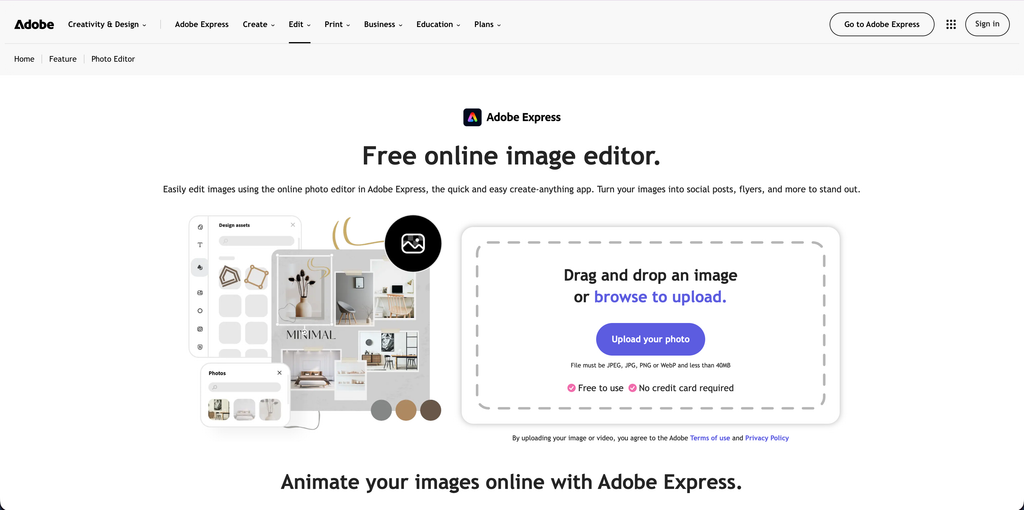
Adobe Photoshop remains one of the strongest options for creators who need detailed control over their images. Its AI-powered features make common editing tasks faster while retaining the flexibility of a professional layer-based editor.
Generative Fill allows users to add, remove, or replace elements using text prompts. Generative Expand can extend an image beyond its original boundaries, which is useful when adapting photographs to different layouts.
Photoshop also includes tools for background replacement, image enhancement, and combining multiple visual elements. Its Harmonize feature helps match the lighting, colors, and shadows of inserted objects with the surrounding image.
For example, a creator can take an existing product photograph, remove an unwanted object, generate additional background space, and place the product into a more suitable composition.
Key Features:
- Generative Fill for adding, removing, and replacing objects.
- Generative Expand for extending image boundaries.
- AI-powered background generation.
- Harmonize for matching inserted elements with the image.
- Layer-based editing and masking.
- Advanced portrait retouching.
- Image enhancement and generative upscaling.
- Desktop, web, and mobile workflows.
Pricing:
- Photoshop: $22.99/month, billed annually.
- Photography plan: From $19.99/month in the US, billed annually.
- Free trial: Available.
Adobe plans include different monthly generative credit allowances. Check the current plan details before relying on frequent premium AI generations.
Pros:
- Extensive professional editing capabilities.
- Powerful generative AI features.
- Precise control through layers and masks.
- Suitable for complex compositions.
- Works well for professional creative workflows.
Cons:
- Takes time to learn.
- Subscription cost may be high for casual creators.
- Some AI features use generative credits.
- More advanced than necessary for simple social media edits.
Best For: Professional photographers, designers, YouTube creators, and marketers who need detailed control over image editing.
2. Canva – Best for Social Media Graphics and Quick Photo Edits
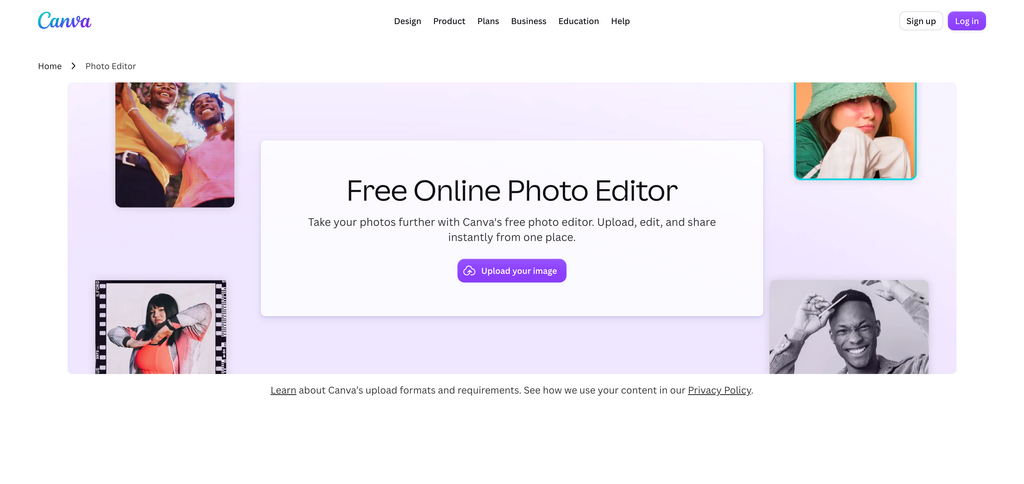
Canva is a design platform with built-in AI photo editing features. It is particularly useful for creators who need to edit images and turn them into finished social media content without switching between multiple applications.
Its AI tools include background removal, image resizing, object editing, and other features available through Canva’s Magic Studio and Canva AI experiences.
For example, a creator can upload a photograph, remove the background, adjust the composition, add text, and turn the result into an Instagram post or YouTube thumbnail.
Canva also offers templates, brand kits, stock assets, and social publishing features. This makes it useful when photo editing is only one part of a larger content creation workflow.
Key Features:
- AI background removal.
- Magic Edit for prompt-based image changes.
- Magic Eraser for removing unwanted elements.
- Magic Grab for selecting and repositioning image subjects.
- Image resizing and design adaptation.
- Templates for social media and marketing.
- Brand kits and reusable design assets.
- Built-in content creation and publishing tools.
Pricing:
Canva’s India pricing includes:
- Free: ₹0/year.
- Pro Lite: ₹1,590/year.
- Pro: ₹4,000/year.
- Business: ₹6,800/year per person.
AI usage allowances and access to premium features differ between plans.
Pros:
- Beginner-friendly interface.
- Combines photo editing and graphic design.
- Useful templates for different platforms.
- Supports brand kits and consistent designs.
- Free plan available.
Cons:
- Not a replacement for advanced professional photo editing.
- Some AI features require a paid plan.
- AI usage allowances vary.
- Complex retouching is better handled by dedicated editing software.
Best For: Social media managers, bloggers, small businesses, and creators who regularly produce Instagram posts, thumbnails, and marketing graphics.
3. Photoroom – Best for Product Photography and Background Editing
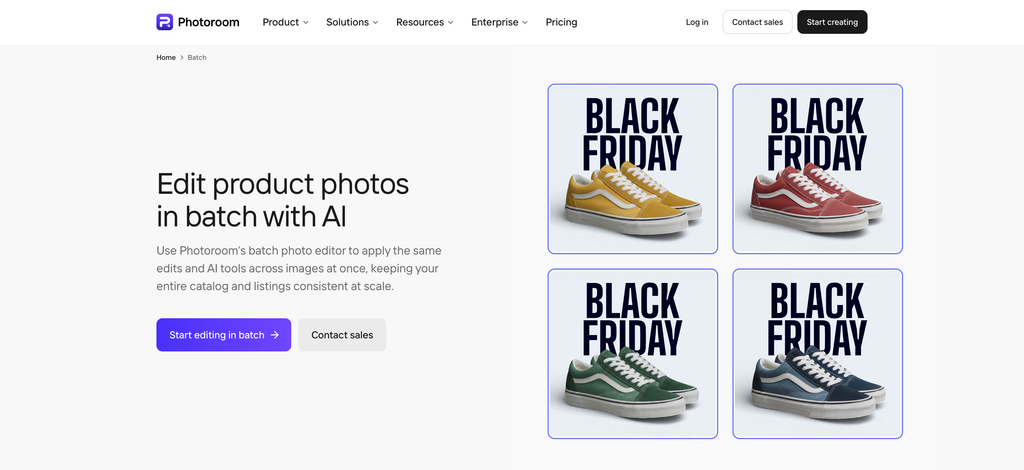
Photoroom is an AI-powered photo editing platform designed around product photography and commercial visuals. It helps creators and online sellers prepare clean, consistent product images without requiring a professional photography studio for every shoot.
Its background removal tool automatically separates a product from its surroundings. You can then replace the background, add shadows, adjust the composition, or generate a different product scene.
Photoroom also includes AI fashion models, product editing, image enhancement, and batch workflows on eligible plans.
For example, an ecommerce creator can photograph a product against a plain wall and use Photoroom to create a cleaner background for a product listing or social media campaign.
Key Features:
- AI background removal.
- AI-generated backgrounds.
- AI product photography.
- AI fashion models.
- AI shadows and lighting adjustments.
- Object removal and retouching.
- Image resizing and expansion.
- Batch editing and product workflows.
- Brand kits and shared workspaces.
Pricing:
- Free: Limited access to editing and exports.
- Pro: $7.50/month, billed yearly.
- Max: $20.99/month, billed yearly.
- Ultra: $82.50/month, billed yearly.
- Enterprise: Custom pricing.
The Pro plan includes 8,000 AI credits and up to 1,000 exports per month. Higher plans offer additional credits, export allowances, and features such as video generation and higher-resolution output.
Pros:
- Excellent background removal.
- Designed for product photography workflows.
- Useful AI-generated product backgrounds.
- Supports batch editing.
- Helpful for consistent ecommerce visuals.
Cons:
- More specialized than a general photo editor.
- Advanced features require higher plans.
- AI credits and export limits matter for high-volume work.
- Generated backgrounds may need manual review to maintain product accuracy.
Best For: Ecommerce businesses, online sellers, product photographers, and creators who regularly publish product images.
4. Luminar – Best for AI-Powered Photo Enhancement
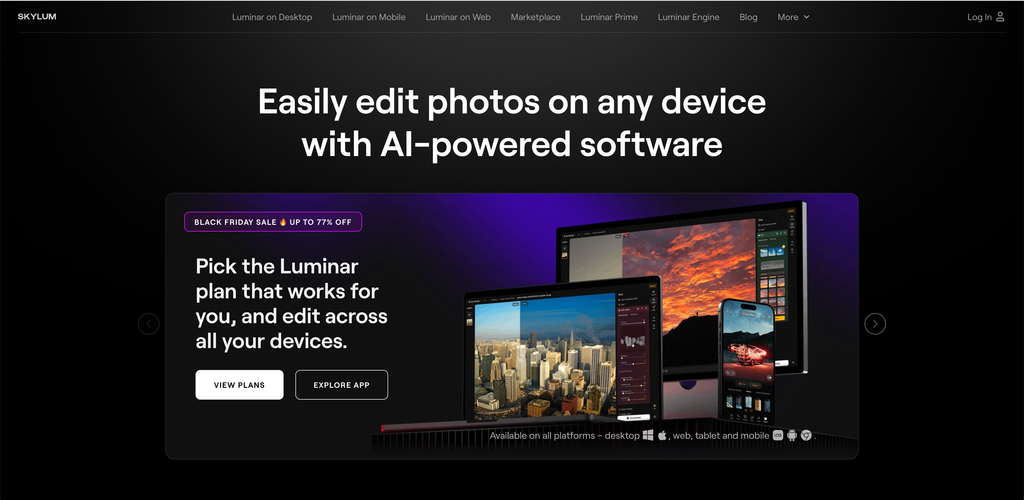
Luminar is a photo editing application that integrates AI into many parts of the editing process. It is particularly useful for photographers and creators who want to improve the appearance of existing photographs without manually adjusting every setting.
Its tools include AI-based image enhancement, sky replacement, object removal, generative expansion, and portrait adjustments.
For example, a travel creator can improve the lighting in a landscape photograph, replace a distracting sky, and remove unwanted objects from the scene.
Luminar is more photography-focused than general-purpose design tools such as Canva. It offers more control over image appearance while still making many adjustments accessible through AI-assisted workflows.
Key Features:
- AI image enhancement.
- Sky replacement.
- GenErase for removing unwanted objects.
- GenSwap for replacing image elements.
- GenExpand for extending image boundaries.
- Portrait and lighting adjustments.
- Presets and creative assets.
- Desktop and supported mobile workflows.
Pricing:
Luminar’s published pricing includes different license options:
- Desktop-only perpetual license: From $99.
- All-platform license: From $139.
- Max package: From $159.
These are displayed promotional prices and may change. Some generative AI tools and creative assets are included for 365 days with perpetual licenses, after which continued access may require Luminar Prime.
Pros:
- AI features are integrated into the editing workflow.
- Useful for landscape and portrait photography.
- Offers object removal and generative editing.
- More photography-focused than template-based design tools.
- Perpetual desktop license options are available.
Cons:
- Some features require additional AI access after the included period.
- Pricing and packages can be confusing.
- Less suitable for creating complete social media layouts.
- AI edits may need manual refinement for realistic results.
Best For: Travel creators, photographers, portrait editors, and content creators who want to improve the quality and appearance of existing photographs.
5. Topaz Photo – Best for Sharpening, Denoising, and Upscaling Images
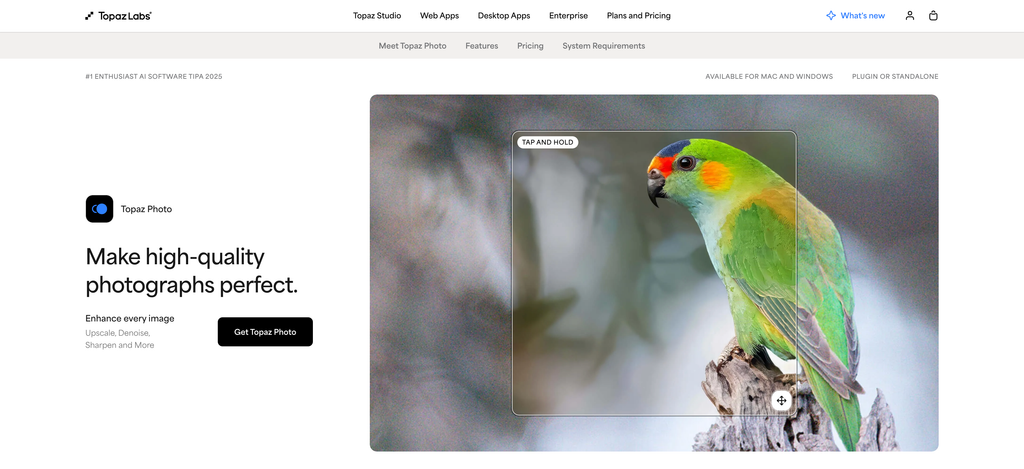
Topaz Photo focuses on improving image quality rather than creating complete social media designs. It is useful when a photograph needs better sharpness, less noise, improved detail, or a higher resolution.
Its AI models can help reduce noise in low-light images, correct blur, recover facial details, and enlarge images while preserving important visual information.
For example, a creator who has an older photograph or a low-resolution image can use Topaz Photo to improve its appearance before adding it to a blog, presentation, or marketing campaign.
Topaz Photo is different from a general-purpose AI image editor. It is primarily an enhancement tool, so creators may still need another application for layouts, text, and more extensive creative edits.
Key Features:
- AI image denoising.
- Image sharpening.
- Blur correction and focus enhancement.
- Face recovery.
- AI image upscaling.
- Object removal.
- Dust and scratch removal.
- Lighting and color adjustments.
- Local and cloud rendering options.
Pricing:
- Topaz Photo Personal: $199/year, billed annually.
- Topaz Photo Pro: Higher-priced commercial licensing.
- Topaz Studio: $399/year for access to multiple Topaz applications.
Topaz offers separate personal and Pro licensing. Businesses should review the commercial-use conditions before purchasing.
Pros:
- Strong image enhancement capabilities.
- Useful for low-light and blurry photographs.
- Can upscale images while reconstructing detail.
- Offers specialized AI enhancement models.
- Useful alongside other editing applications.
Cons:
- Not a complete graphic design platform.
- Subscription required for the current Topaz Photo application.
- Processing can be demanding depending on the image and hardware.
- AI reconstruction can introduce unwanted details if the original image is poor.
Best For: Photographers, YouTube creators, bloggers, and marketers who need to improve image quality before publishing.
6. Pixlr – Best for Quick Browser-Based AI Photo Editing
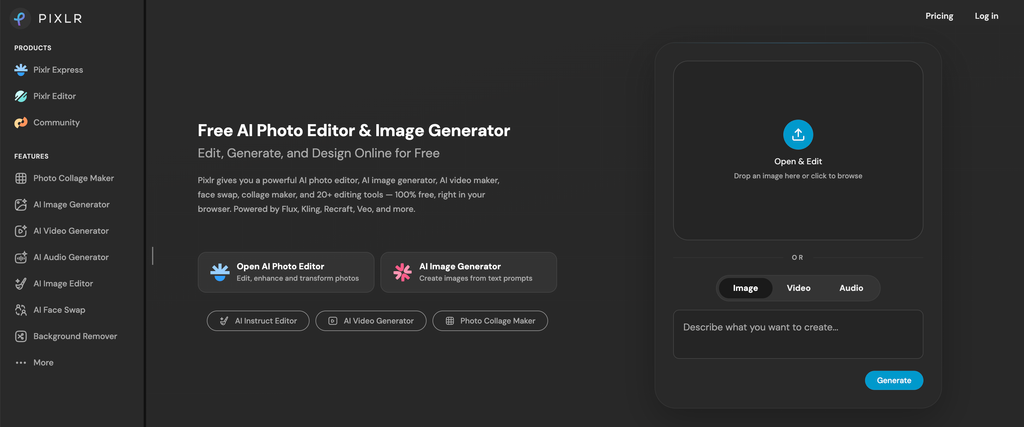
Pixlr is an online photo editing platform that combines traditional editing tools with AI-powered features. It is useful for creators who want to make quick image changes without installing a large desktop application.
Its AI tools include background removal, object removal, generative fill, generative expand, image upscaling, and noise reduction.
The platform also provides layers, filters, effects, and other editing tools for users who want more control over their images.
For example, a blogger can upload a featured image, remove an unwanted object, expand the background to fit a required aspect ratio, and export the result directly from the browser.
Key Features:
- AI background removal.
- Generative Fill.
- Generative Expand.
- AI object removal.
- Image upscaling.
- Noise reduction and sharpening.
- AI-powered editing through text instructions.
- Layers, filters, and design tools.
- Browser-based workflow.
Pricing:
- Free: Limited access to selected tools.
- Plus: $1.99/month, billed yearly.
- Premium: $7.99/month, billed yearly.
- Ultra: From $19.99/month, billed yearly.
AI credits, generation limits, and additional features vary by subscription.
Pros:
- Works directly in a browser.
- Offers a useful range of AI editing features.
- Suitable for quick image adjustments.
- Includes traditional editing tools.
- Affordable entry-level paid plans.
Cons:
- AI credits limit some workflows.
- Advanced features require paid plans.
- Browser performance can depend on the device and connection.
- Not as comprehensive as professional desktop editors.
Best For: Bloggers, beginners, marketers, and creators who want quick AI-powered image edits without installing desktop software.
7. Picsart – Best for Mobile-First Creative Editing
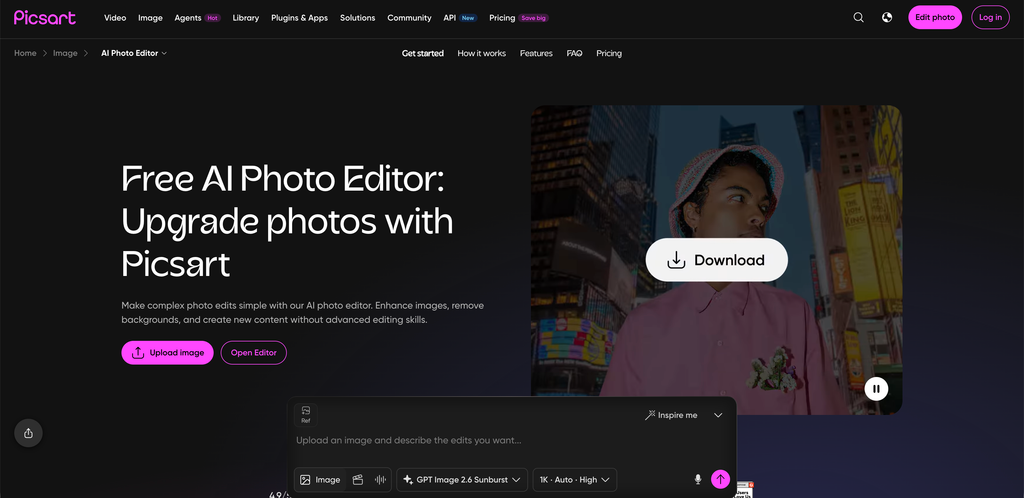
Picsart is a creative editing platform with photo editing, AI tools, templates, stickers, and design features. It is especially useful for creators who produce visual content on mobile devices.
You can use it to remove backgrounds, create collages, apply effects, add text, and prepare images for different social media platforms.
Picsart also includes AI-assisted creative features that help users generate and modify visual elements. Its combination of photo editing and design tools makes it suitable for creators who want to experiment with different visual styles.
For example, an Instagram creator can edit a portrait, add creative effects, combine it with graphic elements, and prepare a finished post from a mobile device.
Key Features:
- AI photo editing and image generation.
- Background removal.
- Object removal and image adjustments.
- Photo filters and effects.
- Collage and layout tools.
- Stickers, fonts, and graphic elements.
- Templates for social media.
- Batch editing on eligible plans.
- Web and mobile access.
Pricing:
- Free: Limited editing and AI access.
- Pro: $10.50/month, billed yearly.
- Ultra: $60/month.
The Pro plan includes premium creative assets, AI tools, cloud storage, and batch editing features. AI credit allowances vary by plan.
Pros:
- Useful mobile editing experience.
- Large collection of creative assets.
- Combines photo editing and design.
- Suitable for social media visuals.
- Supports web and mobile workflows.
Cons:
- Some advanced AI tools require credits.
- Interface includes many creative features that can feel overwhelming.
- Not designed for highly detailed professional retouching.
- Higher-tier plans can be expensive.
Best For: Instagram creators, social media managers, influencers, and mobile-first content creators.
8. Fotor – Best for Beginner-Friendly AI Photo Editing
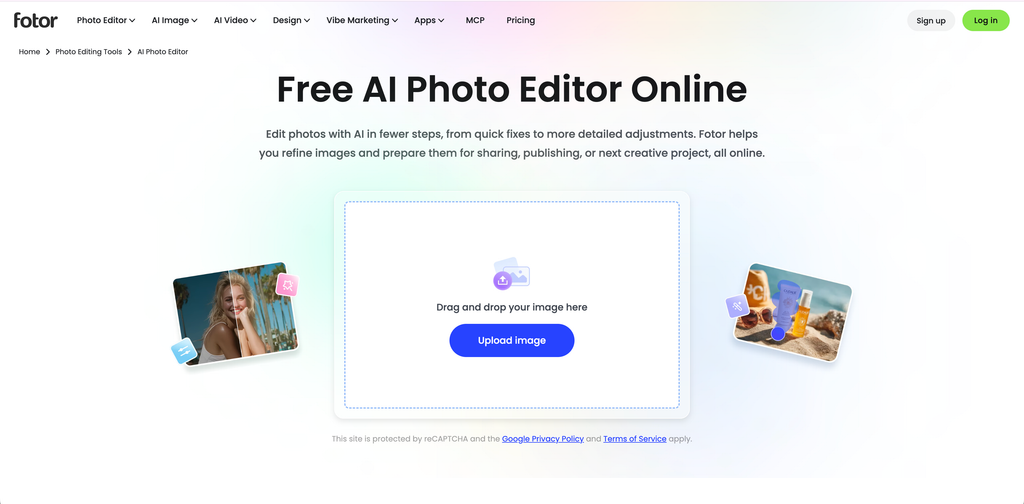
Fotor is an all-in-one photo editing platform that combines traditional image adjustments with AI-powered editing tools. It is designed for users who want to improve images without learning a complicated editing workflow.
Its features cover image enhancement, background removal, portrait editing, object removal, and batch editing.
For example, a small business owner can upload a product image, remove the original background, adjust the appearance, and prepare a cleaner visual for a website or social media post.
Fotor also includes AI image generation and other creative tools, making it useful for creators who want more than basic photo adjustments.
Key Features:
- AI photo enhancement.
- Background removal and replacement.
- AI object removal.
- Portrait retouching.
- Image upscaling.
- Batch editing.
- AI image generation.
- Filters and effects.
- Cloud storage and device synchronization on eligible plans.
Pricing:
- Basic: Free.
- Pro: Paid subscription.
- Pro+: Paid subscription with higher allowances and additional features.
- Max: Higher-tier plan with expanded AI usage and storage.
Fotor’s pricing and AI credit allowances can vary by billing period and promotion. Check its official pricing page for the current amount before subscribing.
Pros:
- Beginner-friendly editing interface.
- Useful AI enhancement tools.
- Includes portrait and product image features.
- Batch editing options.
- Free entry-level plan.
Cons:
- Advanced features require a paid plan.
- Some AI operations use credits.
- Less precise than Photoshop for complex editing.
- Free-plan export and feature restrictions may apply.
Best For: Beginners, bloggers, small business owners, and social media creators who want straightforward AI photo editing.
How to Choose the Best AI Photo Editor
Not every AI photo editor is designed for the same purpose. Some are built for professional photography, while others focus on product images, social media graphics, or quick mobile edits.
Before choosing one, consider these factors.
1. Identify the Type of Images You Create
Start by looking at your regular content workflow.
- For Instagram posts and social graphics, consider Canva or Picsart.
- For professional photography, consider Photoshop or Luminar.
- For product images, consider Photoroom.
- For improving blurry or low-resolution photos, consider Topaz Photo.
- For quick browser-based edits, consider Pixlr or Fotor.
Choosing a tool based on your actual editing needs is more useful than paying for features you rarely use.
2. Check the AI Editing Features
Different applications offer different AI capabilities. Some focus on removing unwanted objects, while others specialize in enhancing image quality or generating new backgrounds.
Look for features such as:
- Background removal and replacement.
- Object removal.
- Generative Fill and Expand.
- Portrait enhancement.
- Image upscaling.
- Noise reduction.
- Batch editing.
Make sure the tool supports the specific edits you need rather than assuming every AI editor includes every feature.
3. Consider Image Quality
AI editing can sometimes change details that should remain untouched. This is particularly important when editing product photographs, portraits, or branded visuals.
Check the final output carefully for distorted text, altered logos, unnatural faces, inconsistent shadows, and incorrect product details.
For commercial content, preserving the original subject is often more important than creating a visually impressive background.
4. Check Export Resolution and Formats
A photo editor should support the quality and formats required by your publishing platforms.
Before subscribing, check:
- Maximum export resolution.
- PNG and JPG support.
- Transparent background exports.
- Image dimensions and resizing.
- Watermarks.
- Commercial usage conditions.
High-resolution exports are particularly important for print materials, product catalogs, and professional photography.
5. Review AI Credits and Usage Limits
Some tools include AI features with limited monthly credits. A simple background removal may not consume credits, while a generative edit or AI image creation may use a separate allowance.
If you edit images every day, calculate how many AI operations you expect to perform each month.
A low subscription price may not be the best option if you regularly need to purchase additional credits.
6. Compare Ease of Use and Workflow
The best editor is one that fits naturally into your content creation process.
If you edit everything on your phone, a mobile-friendly application may save time. If you work with multiple layers and detailed retouching, desktop software may be more suitable.
You should also consider whether the application works with your existing design, publishing, and storage tools.
FAQs
The best option depends on the type of content you produce. Adobe Photoshop is suitable for professional editing, Canva works well for social media graphics, Photoroom is useful for product photography, and Picsart is a good option for mobile-first creative editing.
Canva, Pixlr, Fotor, and Picsart offer free entry-level plans. However, their AI features, export quality, and usage allowances differ. OBS-style unlimited free access is not typical for AI photo editors because many generative features use credits or paid subscriptions.
Yes. Many AI photo editors can automatically identify the main subject and separate it from the background.
Photoroom, Canva, Photoshop, Pixlr, and Picsart offer background-related editing features. The quality depends on the original image and the complexity of the subject.
Photoroom is a strong option for product photography because it includes background removal, AI-generated backgrounds, shadows, product editing, and batch workflows.
Photoshop is another choice when you need more precise control over the final composition.
Some AI photo editors can improve sharpness, reduce noise, and reconstruct details in lower-quality photographs.
Topaz Photo is particularly focused on image enhancement, sharpening, and upscaling. However, AI cannot always recover details that were never captured in the original image.
Commercial usage depends on the tool, subscription plan, source image, and assets used.
Before publishing an AI-edited image in an advertisement, product listing, or client campaign, review the platform’s licensing terms. You should also make sure you have permission to edit and use the original photograph.
Photoshop offers more advanced editing controls, layers, and professional retouching capabilities. Canva is easier for quickly editing images and turning them into finished designs.
Photoshop is generally better for detailed photo manipulation, while Canva is more convenient for everyday social media content creation.
Not completely. AI can automate repetitive tasks and make common edits faster, but professional editing still requires visual judgment.
Creators may need manual adjustments to maintain accurate colors, realistic lighting, correct proportions, and consistent branding.
Conclusion
AI photo editors have made image editing more accessible to content creators. Tasks such as background removal, object cleanup, image enhancement, and resizing can now be completed with fewer manual steps.
The best tool depends on what you create. Adobe Photoshop is a strong choice for professional editing, Canva works well for social media designs, and Photoroom is useful for product photography. Luminar offers AI-powered photography adjustments, while Topaz Photo focuses on improving image quality. Pixlr, Picsart, and Fotor are practical alternatives for quicker editing workflows.
Before choosing a paid plan, test the tools with images you actually publish. Check the final quality, export limits, AI credits, and licensing conditions.
A good AI photo editor should help you create better visuals while keeping your editing workflow simple and consistent.